Samsung Galaxy S may be an old device, but for owners who loves tinkering and enjoys customization, Slim Bean is one of the best sources for Android 4.2.2 Jelly Bean.
Slim Beam Custom ROM features:
RealDarkSlim Toggle
New Slim Sizer
Slim Center
New Root function for SlimFileManager
New extended Quick Settings style options
New Notification and Lock screen shortcuts
Updated Dash Clock
Changeable Notification behavior
NFC Polling Mode: AOKP version
New low battery indicator options
New scenes and focus modes for the camera app
New exposure and jpeg quality for video capture
Warning: This is a custom ROM. Developers would not be held responsible for any damages to your device. Make sure to create a backup of your files and research about the Slim Bean ROM. Do this at your own risk.
Preparations:
1. Create a backup for your SMS, Contacts, APN and data files.
2. Make sure to have at least 80 per cent battery level to prevent interruption during the flash.
3. Enable the "USB Debugging" option on your device.
4. Download and install a ROM Manager app for easier installation.
5. Install a custom recovery on your device such as ClockworkMod recovery.
Apple’s devices are notorious for dominating user satisfaction, but that supremacy is starting to slip. Android smartphones are becoming more and more popular, and most recently four of them have ranked higher in the US than the company’s iPhone 5. In fact, the latest smartphone to grab first place is the low-end $0 Motorola Atrix HD.
Mobile research firm OnDevice Research conducted a device satisfaction study by polling 320,000 mobile and tablet users in six countries, including the US, UK, France, Germany, Japan, and Indonesia. Yet the most surprising results came from the US, where 93,825 mobile users were asked how satisfied they were with their device. US mobile users reported a higher satisfaction with their Motorola Atrix HD device (8.57) than any other device. This is surprising, but could attest to a trend of smartphones becoming “good enough” for most users. Is it possible that many are now very happy with cheaper devices that get the job done, in the line of “better bang for your buck?”
OnDevice Research noted that the Android powered device comes “at a lower price point” but we wanted to make sure just what exactly we are talking about here. A quick check shows that this is your typical “$0 phone” (the ones that are advertised heavily as essentially free, with a three-year contract note in fine print).
That means it is at the equivalent price point of getting the iPhone 4, two generations behind the iPhone 5. Apple’s latest and greatest ranked in fifth (8.23), receiving a lower satisfaction rate in the US than the Motorola Droid Razr M (8.5), HTC Rezound 4G (8.32), and the Samsung Galaxy Note 2 (8.26).
Despite this, Apple still held first place in the US on an aggregate level, followed closely by Google with its Nexus devices. Rounding out the top five, Motorola was third while HTC and Nokia tied for fourth. Samsung was way down in 13th place, even below BlackBerry. This further shows we’re talking about a numbers game: manufacturers that make fewer but arguably better devices rank higher than those that make a wide array of them at varying levels of quality.
Google recently started rolling out an Android 4.1.2 software update for the Google Nexus 7 tablet and some other devices including the Galaxy Nexus smartphone. The update lets you view the home screen in landscape orientation on 7 inch tablets, and includes performance and stability improvements.
But there’s one thing you might want to know before installing the update — you’ll lose root access or any custom recovery you may have installed when you upgrade from Android 4.1.1 to Android 4.1.2 using the over-the-air update.
If you want to keep root access though, there’s an app for that.
These instructions will walk you through the process of updating a Nexus 7 tablet from Android 4.1.1 to Android 4.1.2 while keeping root access. Note that the process may be different for other devices — and this doesn’t apply at all if you’re running a custom ROM such as CyanogenMod 10.
Protecting root access
If you have a rooted phone or tablet, all you need to do is install and run OTA RootKeeper before installing the operating system updated.
OTA RunKeeper is available as a free download from the Play Store. The first time you run the app, you should see a pop-up asking if you want to grant it root permissions. Tap the yes button.
Then tap the big button in the center of the screen that says “Protect Root.” Once you’ve done that, the box that says “Protected su copy available” should be checked.
After that’s done, it should be safe to go ahead and install the Android 4.1.2 update. Note that it will still kill your root privileges and overwrite ClockworkMod or TWRP recovery with the stock recovery — but as long as you’ve protected your root, you’ll be able to restore root access with a tap of a button.
Install the update
If you see a notification alerting you that an update is available, just tape the notification and it will take you to the updater.
If there’s no notification, try going to your settings menu, scroll down and select the “About” option near the bottom of the screen, and then choose “System updates.”
From there you should see a message letting you know what the update does (sort of), and asking if you want to restart your tablet and install the new software. You can also check for updates if there’s not one waiting for you.
Or you can download Android 4.1.2 for the Google Nexus 7 directly from the Google servers and install it using TWRP or ClockworkMod if all else fails.
Restore Root
Once you choose the reboot and install option, it should take about 5 to 10 minutes for your device to install the update and reboot into Android 4.1.2.
When that’s done, you won’t have root access anymore — until you fire up OTA RootKeeper again and this time choose the option to ”Restore Root” rather than protect it.
That’s it. You should now have root access again and be able to use apps that require root permissions including Titanium Backup or root file explorers.
Installing Custom Recovery
A custom recovery utility makes it easy to flash (install) software updates, make a complete backup of your system, or make other changes in a pre-boot environment.
Once your tablet is rooted, the simplest way to install a custom recovery is to install the free GooManager app from the Play Store, open the menu, and choose the option to “install OpenScript Recovery.”
That will download and install the TWRP custom recovery on your tablet. You can boot into it at any time by opening the GooManager app again and choosing the “Reboot Recovery” option.
With December looming just around the corner, it can only signify the start of one thing; Christmas. That dreaded of time of year has somehow managed to creep up on you for another year. It’s time to tackle the Christmas shopping mountain and take on the stressful task of trying to find the best items for as many of your loved ones as quickly, easily and cheaply as possible.
But, often the hardest part of buying presents is actually knowing (or in this case, not knowing) what to buy everyone. Your son has asked for the latest gadget, your daughter wants the latest smartphone, and your husband has been banging on about getting the newest tablet now for months. And, that’s exactly where your first problem lies – you have no clue what the latest technologies are…
Well, if you’re struggling for inspiration this year or are in need of a little guidance on what to buy, here is our guide to the top 5 tech gifts you should buy this Christmas:
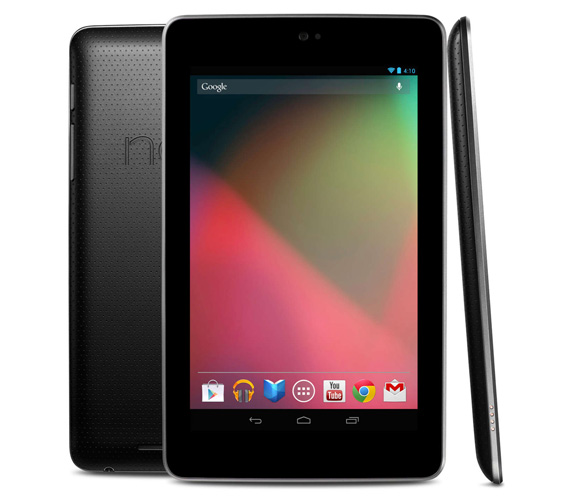
1. Google Nexus 7
If you’re looking for this year’s newest and most exciting touch screen tablet, then Google’s rival product to the Apple iPad is the perfect option this Christmas. With impressive specifications, solid performance and raving reviews, whoever you decide to buy the gift for will not be left disappointed.
And what’s more, at costing nearly $150 less than Apple’s new iPad mini, it’s the perfect option for you if you’re being particularly cautious on what you spend.
If you’d also like to make sure your recipient can surf the internet as soon as they receive it, you can also save yourself some money doing so, by usingPrimus Saver Promo Codes to find the best Internet bolt on deals.
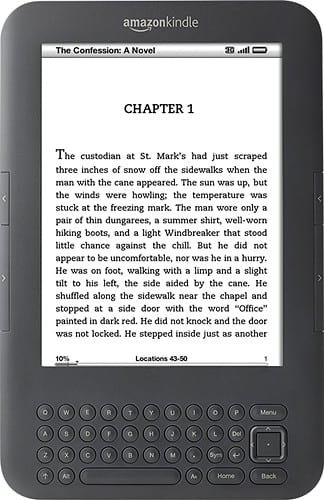
2. Kindle Keyboard 3G
The Kindle Keyboard 3G is the perfect gift if you’ve got a book-lover in your family. Combining free wireless with liquid ink technology, this eReader is the closest you’ll get to reading a real book – but, with the added advantage of being able to store all your favorite books in one handy device to read on the go! Sporting a full QWERTY keyboard, 6-inch E Ink screen, soft-touch finish and sitting at a relatively low $160, it really is a must-have present this Christmas.
3. Arcadie for iPhone
The Arcadie for iPhone is the perfect stocking filler present if you’ve got a gaming-fanatic youngster in the family. Simply pop an iPhone or iPod Touch into the case and it’ll convert it into a miniature arcade. With 6 free apps available, your recipient is bound to have endless hours of fun with this great device! And, even better for you, it’ll only set you back at around a low $23! 4. Lytro Light-Field Camera
The Lytro Light-Field Camera is a great present for any of those that enjoy capturing memories. It’s the first consumer camera that records the entire light field in order to make photo’s even more refined and breathtaking than ever before. At a cost of around $400, it certainly would make for a special present this Christmas
5. ES8000 Series 8 LED TV
If you’ve saved up a little bit of cash and are looking to buy a loved one an amazing present that’s sure to blow any others out of the water, then the ES8000 Series 8 LED TV is a definite must. With this Samsung TV featuring an ultra-slim design, floating screen, the ability to connect to web services such as Netflix and Skype, as well as being the first TV to feature voice and motion control, it really has the wow factor. Available at a pricey $2,100, you should save this present for someone really, really special.
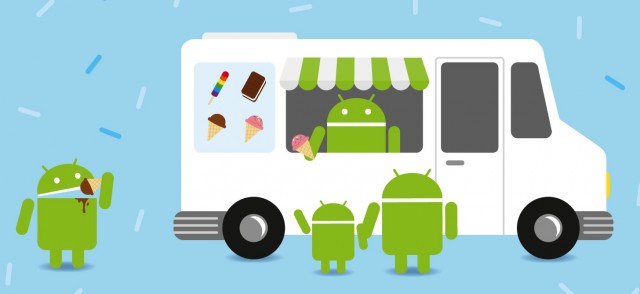
As we all know, the Android OS is an open platform meaning just about anyone can take the software and do just about whatever they like with it. It’s this reason many handset manufacturers opt to forgo the standard Android design (sometimes referred to as “stock Android”), injecting their own flavor into the OS. I like to think of it like an ice cream shop. While every shop is selling ice cream, they all have their own unique flavors and mixins that go beyond just plain vanilla. Unfortunately, for the kids that don’t want HTC’s rocky road, or Samsung’s cookies n’ cream, there’s little that can be done for those who prefer just plain vanilla.
Yes, for the truly dedicated, there’s always the method of rooting and installing the stock Android OS by way of custom ROMs. Only problem is rooting often times comes at the cost of voiding one’s warranty, buggy software, and even possible harm to the device by way of the dreaded “brick.” If this doesn’t sound like your cup of tea, you’re not alone. But is rooting really the only way to a stock Android experience on your device? Not entirely.
For our lovely Phandroid readers, I put together this handy guide showing you how, with apps downloaded from the Google Play Store, you can obtain a mostly stock Android experience out of your device — all without the worries that come with rooting, hacking, or voiding of warranties. Before we start, keep in mind that some of these applications will not run properly on anything but the firmware they were taken/designed from. For instance, an Ice Cream Sandwich browser will only work on your device if you’re running Android 4.0 Ice Cream Sandwich, not Gingerbread or Donut. Make sure you read the descriptions of the apps in the Play Store before you download. Now that we got that out of the way, let’s do this.
Launcher
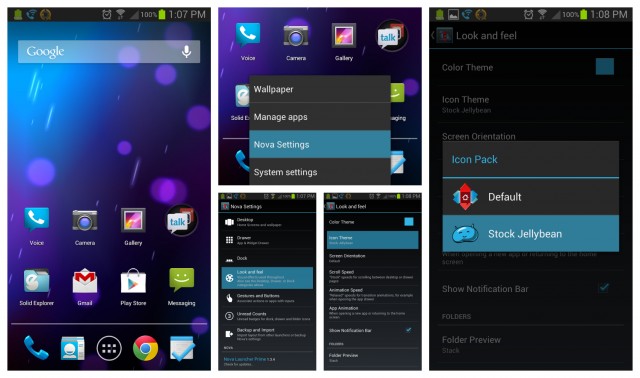
The most dramatic way to get your device looking like it’s running stock Android is by simply replacing its homescreen. In fact, most people will usually stop right there and that’s fine, but it’s only the tip of the Holo iceberg. With so many launcher replacements on the Google Play Store, there are numerous options to choose from. If you want something more closely resembling the stock Android experience (that is the point of this post, after all) you’ll want to stick with all-in-one solutions like Nova Launcher which offers a wide range of customizing options. Where you can find completely stock Jelly Bean launchers on the Play Store, they ain’t gonna help you when it comes to switching up those ugly icons your phone came with. Nova Launcher on the other hand, comes out of the box with Jelly Bean icons allowing for easy themeing of the remnants left behind from your unsavory manufacturer UI. Yay.
Lockscreen
Another key ingredient to the stock Android experience is the first thing you look at upon waking your device — the lock screen. Once again, there are plenty of lockscreen options in the Play Store you can use to get your device looking like it’s running stock Android, the one with a heap of features being Widget Locker. I’ve been using Widget Locker for years now and while there are free lockscreen replacements (linked below), it’s WL’s feature set that keeps me coming back to it. The best part is you can use widgets from other apps, a key component if you want that stock Android 4.2 Jelly Bean clock displayed on your lockscreen.
Camera
Ahhhh, yes. The camera. Chances are there is absolutely nothing wrong with the camera application that comes on your device. In fact, it probably runs perfectly well and comes with sh*t ton of features. There’s only one problem: it ain’t stock. This time around, we have a fewer options for stock Android camera applications from the Play Store, most of which are dependent on the version of Android your device is currently running. Got Ice Cream Sandwich? Well, then you’re going to have to stick to the ICS cameras (linked below). If you’re on Jelly Bean, you’re in luck. The Jelly Bean camera app in this case comes tied to the stock Gallery app. Not sure why it had to be that way, but consider it a 2-for-1 deal.
Gallery
Probably my most frequently used app on my phone is the gallery app. I spend a lot of time in there sharing pics to my various social networks and it pains me when I see anything but minimal look of stock Android gallery app. If you purchased the Jelly Bean camera (linked above), you already got the Jelly Bean gallery app. Good for you. For those that didn’t, or simply didn’t want to bother with using the stock camera app, then you can download the free Ice Cream Sandwich gallery app. This is essentially the same as the Jelly Bean gallery, except you lose the notification bar. I’m sure this wont even bother most of you the way it did me (Jelly Bean FTW).
Messaging
I went nuts when Google finally updated the messaging app in Ice Cream Sandwich. Once a hideously dark and empty experience, is now clean and minimal. It took me awhile, but I was able to find the stock Ice Cream Sandwich messaging app that can be installed on any device running Ice Cream Sandwich or Jelly Bean. There’s only one problem — this stock messaging app can’t (at the moment) send off MMS/picture messages, so heavy sexters may want to stick with whatever messaging app is already available on their device. Fooey.
Keyboard
When a manufacturer introduces their custom UI to a device, the first thing almost always kicked to the curb is the stock Android keyboard. This happens so often, you’d logically assume the stock keyboard is just that horrible, right? Couldn’t be further from the truth. In fact, Google has done some pretty awesome things with the Android keyboard starting in Android 4.0 Ice Cream Sandwich where text is more aggressively corrected, and in Jelly Bean, we even have next word predictions and Gesture Typing. So, there’s a couple of options here for heavy Android texters. You can download one of the modified stock Android keyboards below, or simply go with something like SwiftKey and use the built-in themeing options to make it appear more like stock Android. Either route would work.
Clock
In Android 4.2 Jelly Bean — the absolute latest firmware Android has to offer — Google decided to finally update the stock clock application. They did this by, not only giving the app a much needed visual overhaul, but making it more useful with the inclusion of timer and stop watch functions. One of the visual cues used to see which version of Android a device is running is almost always the stock clock widget, which was also updated in 4.2. Thankfully, a developer has uploaded both the stock clock app, with the included stock clock widget from 4.2 and it looks wonderful. Combine the Jelly Bean clock widget with the Widget Locker lockscreen replacement and you have yourself a faithful recreation of the lockscreen from Android 4.2 (for the most part).
The calculator in Android has long needed an update and one crafty developer from the CyanogenMod team took matters into his own hands, introducing a revamped calculator into the Play Store complete with scientific and graphing functions. So, yes. This is in many ways better than the stock app, but still keeps the stock app look. The best part? It’s free to download so hop to it.
Another application that’s almost always removed from manufacturer devices is the stock Calendar app. This allows Android OEM’s to introduce their own calendar app, usually heavily skinned and chalk full of features. For those that find the stock Android calendar sufficient — in looks and features — Google has actually made available the stock Android calendar for download in the Play Store. As so often is the case with Google’s apps, it’s available free of charge.
It was in Jelly Bean that Google made the controversial decision to remove their standard Android web browser (the one introduced all the way back in Honeycomb) from the OS entirely. Instead, they opted for their mobile Chrome browser, which offered better syncing across devices, but many found the browser slow in comparison to the previous version. While downloading Chrome from the Play Store would be the easy way at obtaining a “stock” Android look, the app doesn’t really feature Android’s Holo UI. For those wanting to take things back to the oldschool browser, there is one available from the Play Store, but you gotta be running Ice Cream Sandwich. Bummer. No Jelly Bean love here, folks.
The icing on the cake for obtaining a stock Android look is, of course, using the stock Android wallpapers. While downloading the official wallpapers found in Jelly Bean are easy (zip file provided below), it’s some of the stock live wallpapers that are a little harder to come by. When it comes to the Phase Beam live wallpaper — introduced way back in Ice Cream Sandwich — one thoughtful developer has uploaded the moving wallpaper onto Google Play for everyone to download and enjoy. While it’s not the exact same wallpaper found on stock Android devices, it does a well enough job at recreating the Phase Beam wallpaper, while adding a few tricks as well.
Google caused some buzz a few days ago when they introduced their music discovering app, Sound Search into the Google Play Store. Once reserved for Jelly Bean devices, Sound Search is now available to anyone with a device running Ice Cream Sandwich or above. It’s a great way to discover new music, download, and give your device yet another stock Android feature.
So, that just about concludes this guide. These are always the first apps I download whenever I receive a new device and aside from visiting my settings app, my eyes rarely see any trace of manufacturer UI. I think it’s clear Android manufacturers will never offer a “vanilla” version of the OS with any of their devices. For purists, we have the Nexus program for that. I’m fine with that, I really am. Individuality, options, and choice are good for Android and consumers. Still, there have been a vocal few screaming for manufacturers to make their UI an option (downloadable from the Play Store) and really, I think it’s Google’s responsibility to make this happen. Not by cutting off Play Store access, but simply by offering every single one of their stock Android applications in the Play Store for downloading. This, will give users the choice of downloading and getting a mostly stock Android experience, if they so choose. I’ll step down from my soap box now. Just some food for thought.
If you found this guide helpful, don’t forget to share with friends. Also, if you feel that I missed anything, or maybe you have a few apps you think should have made it into the post, sound off below. Cheers.