Latest Updates
Showing posts with label install. Show all posts

How to Install Android 4.2.2 Jelly Bean with Slim Bean for Samsung Galaxy S I9000

How to Install Android 4.2.2 Jelly Bean with Slim Bean for Samsung Galaxy S I9000

                         Samsung Galaxy S may be an old device, but for owners who loves tinkering and enjoys customization, Slim Bean is one of the best sources for Android 4.2.2 Jelly Bean.

Slim Beam Custom ROM features:


RealDarkSlim Toggle
New Slim Sizer
Slim Center
New Root function for SlimFileManager
New extended Quick Settings style options
New Notification and Lock screen shortcuts
Updated Dash Clock
Changeable Notification behavior
NFC Polling Mode: AOKP version
New low battery indicator options
New scenes and focus modes for the camera app
New exposure and jpeg quality for video capture
Warning: This is a custom ROM. Developers would not be held responsible for any damages to your device. Make sure to create a backup of your files and research about the Slim Bean ROM. Do this at your own risk.

Preparations:


1.      Create a backup for your SMS, Contacts, APN and data files.

2.      Make sure to have at least 80 per cent battery level to prevent interruption during the flash.

3.      Enable the "USB Debugging" option on your device.

4.      Download and install a ROM Manager app for easier installation.

5.      Install a custom recovery on your device such as ClockworkMod recovery.

6.      Download the Slim Bean ROM 4.2.2 for Galaxy S and the Google Apps Package on your computer.

Flashing Instructions:

1.      Connect the Galaxy S to the computer via USB cable.

2.      Copy the Slim Bean and Google Apps files on the device's SD card. Just paste them on the SD card root directory.

3.      Turn off the device and disconnect from the computer.

4.      Enter into the Recovery mode.

5.      Inside the CMW, perform a full data wipe and then "flash zip from SD card".

6.      Select "choose zip from SD card"

7.      Choose the "Android 4.2.2 ROM" zip file you have downloaded earlier.

8.      Use the same with the "Google Apps Package".

9.      After the installation, go back and "reboot system now".

You are all done and updated your Samsung Galaxy S to Android 4.2.2 Jelly Bean using the Slim Bean custom ROM.

Original Article_Here
credit goes to http://au.ibtimes.com

windows 8 requirements

 windows 8 requirements
             Do you looking for install windows 8 for your desktop or laptop?If you are still using windows 7 as my knowledge and experience try windows 8 and change to windows 8.Its fast and easy to use.Few months earlier windows 7 was on my laptop.then after I got a news for windows 8 I decided to change to the windows 8.After few steps windows 8 was installed on my laptop.(You also  can windows 8 by using your USB  drive).Its amazing and very fast & easy to use better than windows 7.

So first of all you must check your computer is capable to windows 8 or NOT.
Let's check it.Here are the minimum windows 8 requirements :

  •  Processor: 1 GHz
  •  RAM: 1 GB (32-bit) or 2 GB (64-bit)
  •  Hard 
  • space: 16 GB (32-bit) or 20 GB (64-bit)
  •  Graphics card: Microsoft DirectX 9 graphics device


Windows 8 features and additional requirements

Touch
Touch is the new feature of Windows 8, it allows you can use your laptop just like using your smartphone (ex. iPhone 5, Samsung Galaxy S3, HTC One X, etc.), for using Touch, your need a monitor that supports multitouch.

Windows 8 apps
You can download many apps from the Windows 8 Store, for downloading apps, you need an active Internet connection. To run and snap apps, your need a monitor that supports screen resolution of at least 1366 x 768 pixels.

installing ubuntu on nexus7


What you will need


  • Nexus 7 Tablet (8GB, 16GB, or 32GB)
  • Standard MicroUSB Cable (should come with the device)
  • Ubuntu Nexus 7 Desktop Installer installed on your development system(Version 1.7 now supports 13.04)
  • Ubuntu 12.04 LTS or Later

Optional

Micro USB Host Cable (OTG Cable) - used for attaching keyboard, mouse, etc.


Unlocking the Nexus 7

The Nexus 7 ships with a locked boot loader  You must unlock it in order to flash different images to the device. Fortunately, this is a trivial process, and you only need to do it once.


  1. Reboot the Android device into the Android boot loader. To do this, first power down the device in the normal fashion (hold down the power button, then select power off and wait a few seconds). From the off state, hold the volume down button and press the power button. Continue holding the volume down and power buttons until you see the boot loader UI.
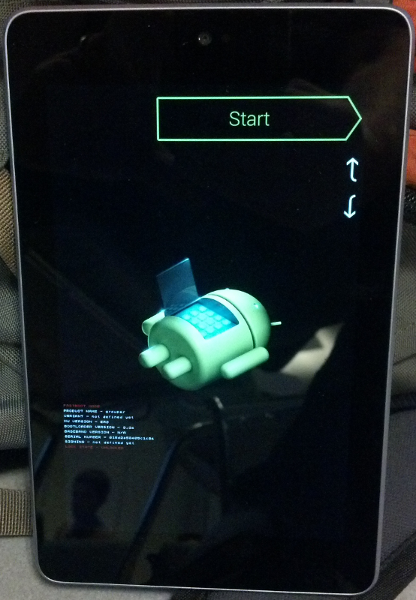
  2. Plug in the device to your laptop with your micro-usb cable The device now displays the boot loader GUI, which looks like this:


  • Verify fastboot lists the device. In a terminal on your laptop, run:


 * $ sudo fastboot devices
1234567891234567        fastboot

  • Start the bootloader unlock process:

sudo fastboot oem unlock

         You are prompted on screen to unlock the bootloader on the Android device screen. Follow the on-screen directions to continue. Your screen should now look like this:
Complete the process by rebooting:

sudo fastboot reboot-bootloader
Or simply press the power button.

When the device reboots back into the bootloader (fastboot mode), you should see "LOCK STATE - UNLOCKED" in small red print. At this point your device is now unlocked.

Installing Ubuntu 13.04 on Nexus 7

Once all setup has been completed, the installation can start. To install, ensure the Nexus 7 is in fastboot mode, plug it into your computer (and make sure NO OTHER DEVICES are plugged in).

Find the installer in the dash (search for 'nexus'):
This will provide a Graphical Interface for installing Ubuntu. This tool will download the latest image automatically, and flash it accordingly. The flashing step should take about 2 minutes. Once the flashing is complete, the device will reboot and finish the installation. This step can take 10-15 minutes.

Read More_wiki.ubuntu.com


How to install Windows 8 from a USB drive

        
For many enthusiasts there's nothing quite like getting your hands on a shiny new release of Microsoft's Windows operating system. And that's precisely why the web is buzzing with all things Microsoft, as the software giant has made available a Release Preview of its next flagship OS, Windows 8.


The Release Preview is the final pre-release version of Windows 8 and is free to try, but if you want to put it through its paces without donating a blank DVD, here's a brief guide on how to easily install Windows 8 from a USB pen drive.

Here's what you need: a USB pen drive (4GB or greater in size), the Windows 8 Consumer Preview disk image file (64-bit download here, 32-bit download here), Microsoft's Windows 7 USB tool (download here) and a working PC.

Once you have all those, follow these steps:


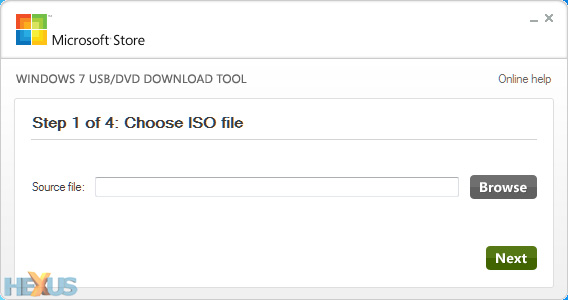
1. Install and run Microsoft's Windows 7 USB tool. In the subsequent window (pictured below), browse to the 32-bit or 64-bit Windows 8 disk image file you've already downloaded and hit next.


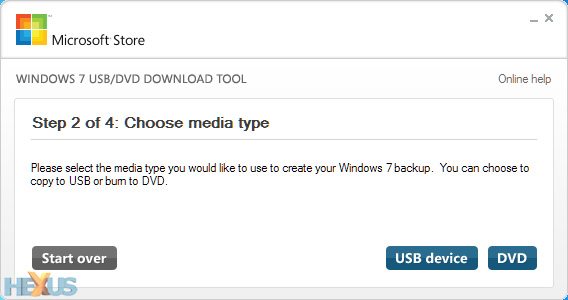
2. With your USB stick plugged in (remember, it'll need to be at least 4GB in size for a 64-bit install), choose USB device as your media type.
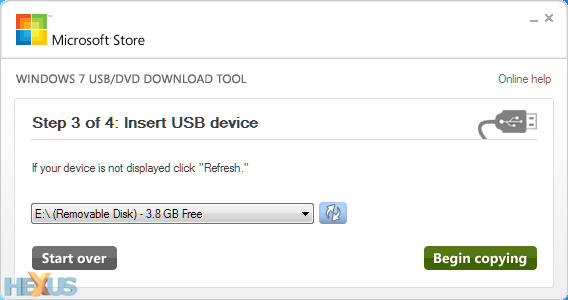
3. Select the correct removable device from the drop-down menu, then click begin copying.


4. Sit back, relax, and make a cuppa while the USB tool formats your pen drive, makes it bootable, and copies over all of the Windows 8 files.


5. Once the process is complete, the USB drive can be used to boot a PC and run the Windows 8 setup process.


That's all there is to it. You'll save yourself a blank DVD, the Windows 8 setup process should be quicker from flash-based media, and it's of course a must on netbooks or laptops without an optical drive.


view original article

How To Install Windows 8 From a USB Device

How To Install Windows 8 From a USB Device

The need to install Windows 8 from a USB device, like a flash drive, is a common one due to the fact that many computers, especially tablets and smaller laptops and desktops, no longer have optical drives.

In other words, that Windows 8 install disc doesn't do you much good if you don't have anywhere to put the DVD! If you want to install Windows 8 from a USB device, you'll need to get those setup files onto a USB device. Unfortunately, simply copying them there won't do.
Windows 8 is also sold as a downloadable ISO file which, if you choose to buy Windows 8 that way, requires some steps to get it properly copied to a flash drive as well.

Regardless of whether you have a Windows 8 DVD you need to get on a flash drive, or a Windows 8 ISO file with the same goal, the following tutorial will help you get the Windows 8 installation files properly copied to a flash drive so you can get on with the installation process.

Note: The following procedure applies equally to Windows 8 (standard) or Windows 8 Pro.

Difficulty: Average


Time Required: Getting the Windows 8 installation files onto a flash drive or other external USB device will take between 20 and 30 minutes, depending on what format your copy of Windows 8 is in right now and how fast your computer is.

Requirements:

A flash drive (4 GB or more) [Check Prices]
A Windows 8 DVD or Windows 8 ISO file
Access to a working computer, with a DVD drive if you have a Windows 8 DVD, with Windows 8, Windows 7, Windows Vista, or Windows XP installed
Important: If you have a Windows 8 ISO file and want that on a flash drive, start with Step 2. If you have a Windows 8 DVD and need that on the flash drive, start with Step 1.

Here's How:

Create an ISO file from the Windows 8 DVD. This is the procedure by which you create a single file, called an ISO image, that contains all the data stored on the Windows 8 setup DVD disc.

Once you have an ISO image created from your Windows 8 disc, come back here and continue on with this tutorial which will explain how to get that ISO file onto a flash drive.

Note: If you already know how to create ISO files with your favorite program, often called "ripping," then do so in whatever way you're used to doing it. However, if you've never created an ISO image, or don't have a program installed right now that does it, please see the linked tutorial above for complete instructions on doing so with a free program.

Download the Windows 7 USB/DVD Download Tool from Microsoft and then install it.

This free program from Microsoft properly formats your flash drive and then copies the contents of the Windows 8 installation ISO file you have to that flash drive.

Note: Don't worry that this program has Windows 7 in the title. This program works perfectly well with Windows 8 ISO files and can be installed in Windows 8, Windows 7, Windows Vista, or Windows XP.

Start the Windows 7 USB DVD Download Tool program. You should be able to find the shortcut on the Desktop, as well as in your Start menu or on your Start screen, depending on which version of Windows you installed the program on.

Click Browse on the Step 1 of 4: Choose ISO file screen.

Locate, and then select, your Windows 8 ISO file. Then click or touch Open.

Note: If you downloaded Windows 8 from Microsoft, check your Downloads folder or your Desktop for the ISO image. If you created an ISO image from your Windows 8 DVD, the ISO file will be wherever you created it to.

Click or touch Next.

Choose USB device on the Step 2 of 4: Choose media type screen.

Note: As you can see here, there is also a DVD option. While it doesn't do us much good in this case, since the end game is to get Windows 8's setup files on a flash drive, you could also use this tool to burn a Windows 8 ISO image to a DVD or BD disc.

On the Step 3 of 4: Insert USB device screen, choose from the drop-down box the flash drive or USB-connected external hard drive you want to put the Windows 8 setup files onto and then touch or click Begin copying.

Tip: If you haven't yet plugged in the USB storage device you're planning on using, you can do that now and then touch or click the blue refresh button to make it show up in the list.

Click or touch Erase USB Device if you're prompted to do so on a Not Enough Free Space window. If you don't see this, don't worry, it just means that your flash drive or external hard disk is already empty.

Important: If this message didn't make it apparent, you should know that whatever data you might have on this drive is going to be erased as part of the process of getting the Windows 8 setup files copied.

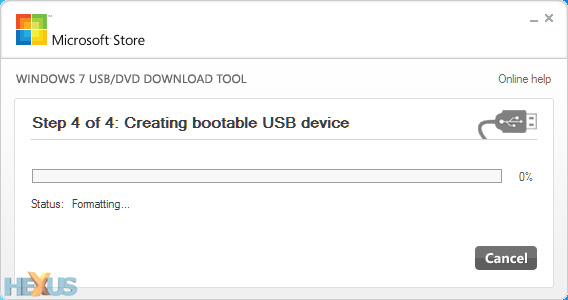
On Step 4 of 4: Creating bootable USB device, just wait for the Windows 7 USB DVD Download Tool to prepare the drive and copy the Windows 8 installation files to it.

The first Status you see will be Formatting, which will take anywhere from a few to several seconds, depending on how large the USB drive is that you're using. Next will be Copying files which could take anywhere from 15 to 30 minutes, possibly longer, depending on which Windows 8 ISO file you're working from, as well as on how fast your flash drive, USB connection, and computer is.

Tip: Don't worry if the percentage indicator jumps ahead quickly but then sits on a single number for a very long time. While it might not make a lot of sense to behave that way, it doesn't necessarily mean anything is wrong.

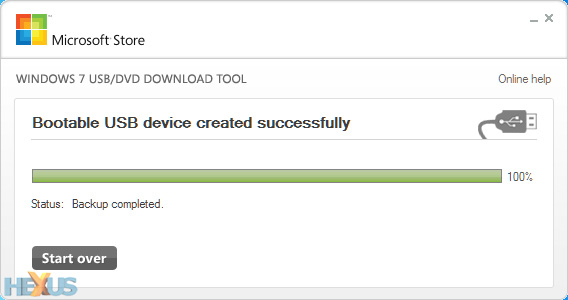
Assuming everything went as planned, the next screen should say Bootable USB device created successfully with a Status that says Backup completed.

You can now close the Windows 7 USB DVD Download Tool program window. The flash drive, or other external USB drive you're using, now has the necessary files on it to install Windows 8 and is also properly configured to be booted from.

Boot from the USB device that you just created to start the Windows 8 install process.

Tip: If the Windows 8 setup process doesn't start, it's very likely that you'll need to make boot order changes in the BIOS. See How To Change the Boot Order in BIOS if you need help doing that.

Note: If you came here from my How To Clean Install Windows 8 tutorial, you can return there now to continue the walkthrough of that process.


                       Discover What Really Works Online, As You Go Behind The Scenes With Two Of The Worlds Top Marketers!learn step by step and earn real money from internet .
click here

  Start Your Own Home-based Affiliate Marketing Business With Super Affiliate Rosalind Gardner's Expert Guidance! Topics Include Blogging, Market Research, Affiliate Programs, Web Design, Problem Avoidance And So Much More! Updated Regularly.
click here


view original article